


The IMPORTRANGE Google Sheets function is the only function that can transfer data between spreadsheets. It lets you easily import data from one Google Sheets file to another without the need for manual work. Saving you time, and removing the risk of human error.
However, IMPORTRANGE does have complex requirements and a few limitations. It is an easy function for spreadsheet masters, but for inexperienced users it can be confusing.
In this article, we’ll cover possible uses of IMPORTRANGE, how to implement it, as well as its pros and cons. We’ll also see how Sheetgo, an AI-powered data automation platform, can be the perfect IMPORTRANGE alternative to level up your spreadsheet data management.
What is IMPORTRANGE in Google Sheets?
IMPORTRANGE is a function that imports values from a range of cells from one spreadsheet to another. All you need is access to the source spreadsheet and its URL.
Given Google Sheets’ cloud-based infrastructure, IMPORTRANGE is very simple. Every file has a unique URL, so you can reference individual files by including the file’s “key” (more on this later). You then add specificity by referencing a page and a cell range within this file.
IMPORTRANGE is great for one-time and sporadic data imports from one sheet to another. You can use it to carry out simple data transfers such as:
- Import specific data to create general reports
- Transfer older data to compare with newer data
- Retrieve dynamic data for the latest insights
- Combine multiple, large datasets into a single spreadsheet
- Send private data to a shareable file
Despite all its power, it also has some drawbacks. For example, it’s not recommended to perform multiple imports across multiple spreadsheets.

How to use IMPORTRANGE in Google Sheets
To learn how to use IMPORTRANGE in Google Sheets, it’s important to understand its syntax and its required parameters.
Syntax of IMPORTRANGE
=IMPORTRANGE(spreadsheet_url, range_string)
As you can see, to import a range of data from another spreadsheet, you need only two things:
- The spreadsheet’s url.
- The range within that spreadsheet.
Both of these parameters are pretty self explanatory but they are still worth going over.
1. Spreadsheet URL
There are two ways to include this information:
- You can copy the complete URL of the source spreadsheet.
- You can use only the spreadsheet key to make the formula shorter. This is the unique identifier that Google Sheets uses for each spreadsheet.
Below is a complete URL with the spreadsheet key in bold.
https://docs.google.com/spreadsheets/d/1sqWKxq4mbsJVqy2mZbeV2H7MWF9TZ2V-yU6Ne0NGL0g/
If you want to only copy the spreadsheet key this is what the formula would look like:
=IMPORTRANGE("1sqWKxq4mbsJVqy2mZbeV2H7MWF9TZ2V-yU6Ne0NGL0g", range_string)
2. Range string
The range string is the cell range that you want to import from the source spreadsheet. You can specify the sheet name, or you can omit it to have IMPORTRANGE import the cell range from the first sheet.
As with the URL, the range string must be included between quotation marks. This is what the formula would look like with a specific sheet name within the range string:
=IMPORTRANGE("1sqWKxq4mbsJVqy2mZbeV2H7MWF9TZ2V-yU6Ne0NGL0g", "Sheet2!A:B")
IMPORTRANGE example
For this example, let’s compare sales team performance in 2020 and in 2021 to generate a performance report.
First thing to do is to use IMPORTRANGE to transfer the 2020 sales performance column into the 2021 sales sheet. This will enable us to compare the data directly.
The screenshot below shows the 2020 data to transfer. The exact range we want to import is “Sales 2020!C2:C19”.

In this case, the entire function should be:
=IMPORTRANGE("1hrH0ix0aqO9okS4T5mL_Atte8D_iKOzmSF4h_weDDhA","Sales 2020!C2:C19")
The first time the function runs it will return an error and you will need to link your two sheets. Click Allow access to fix it.
The function imports data and displays it in the sheet, as shown below.

Now that the two datasets are in one place, I can calculate key metrics for my performance report. For example I could analyze sales trends between 2020 and 2021.
Keep in mind that data transfers occur almost instantly for small datasets. But naturally, larger datasets will take longer.
How to use IMPORTRANGE step by step
It should first be noted that in order to use the IMPORTRANGE function in Google Sheets you need to know the URL. All files saved on your Google Drive have a unique URL, which is what allows you to ‘refer’ to the spreadsheet. Depending on the data you wish to refer to, you can specify the page or range within the importing spreadsheet.
Let’s say we want to import students scores from file ‘Assignment Scores’ into ‘Full Student List’:
1. Go to the Google Drive folder where your exporting spreadsheet is, and right click to “Get link”.
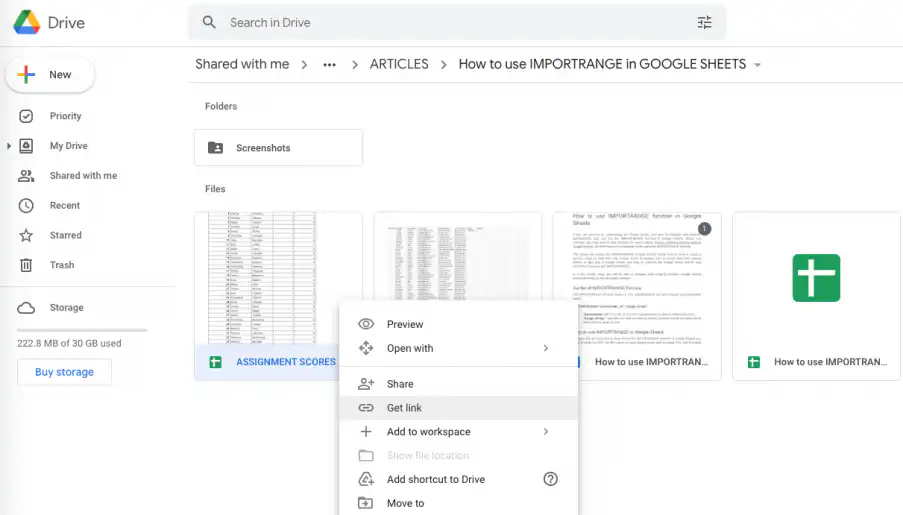
2. Make sure you click on “Copy link” too.

3. Another simpler and faster way is to open the exporting spreadsheet and click on the address or URL bar to select the link.
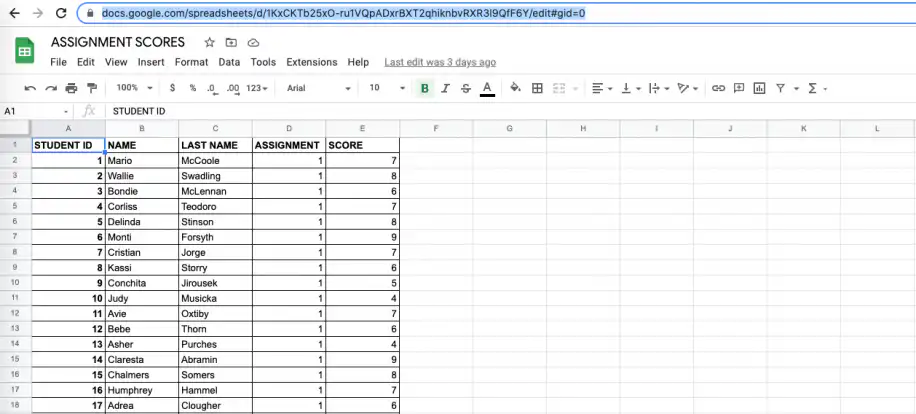
4. Now that the link is copied, go to the importing spreadsheet and paste it in the spreadsheet_url variable of the IMPORTRANGE formula.
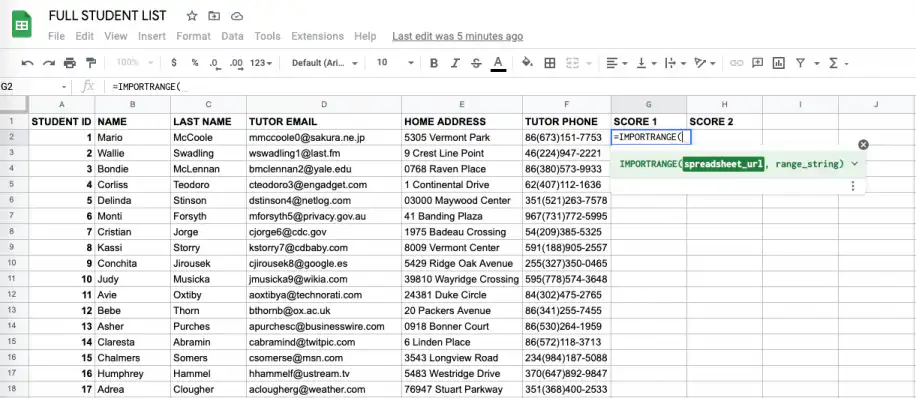
5. Then, the range_string can be added in two ways. First, you simply select the range you wish to import and then copy the range from the far-left. Here, E2:E41.
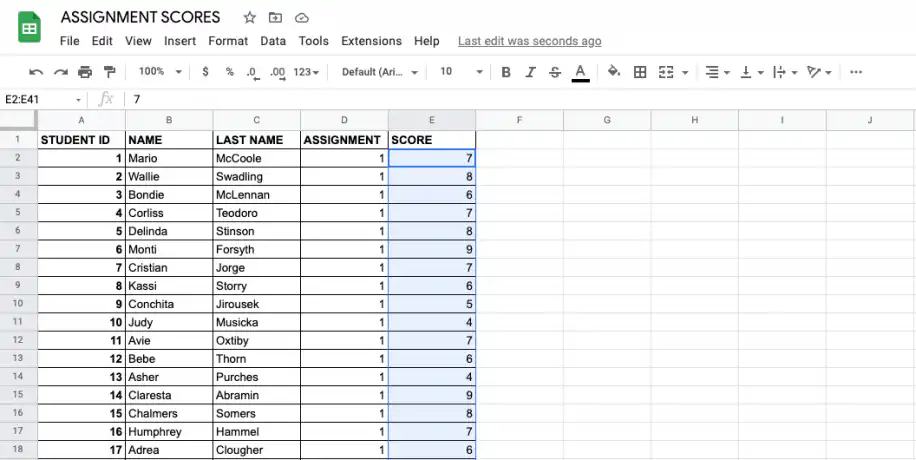
6. A second way is to name the range and save it for further use. For this, you would need to click on the arrow next to E2:E41 and click on “Manage named ranges”.
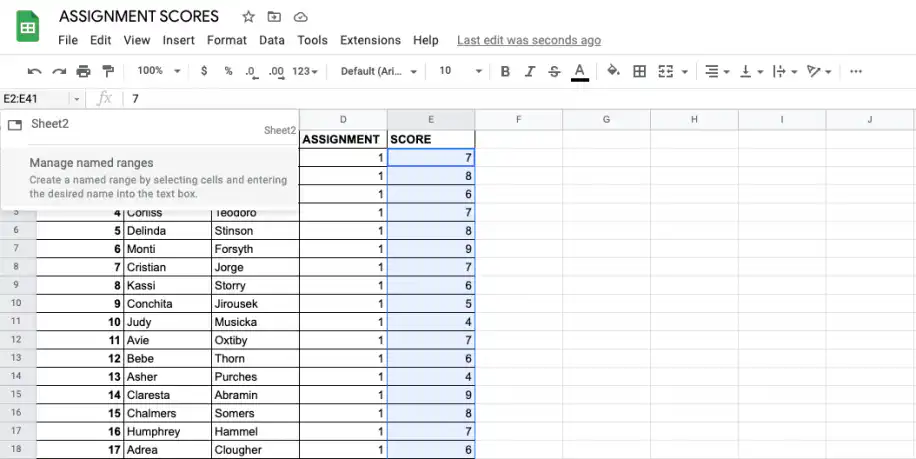
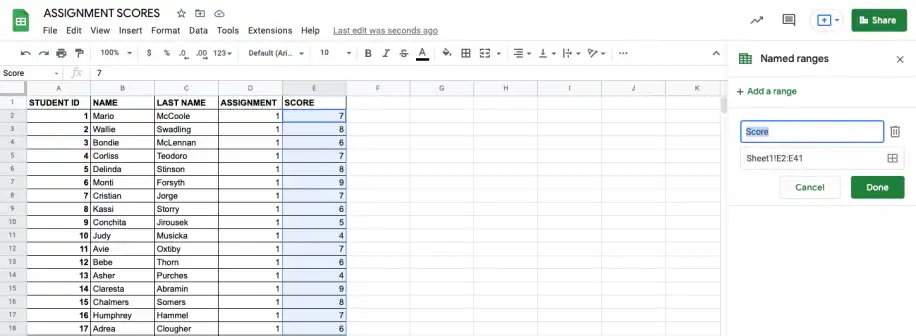
7. Add the name of your range to the field in the pop-up window. In this example, I’ll name it ‘Score’. Check your range and name are correct before clicking Done.
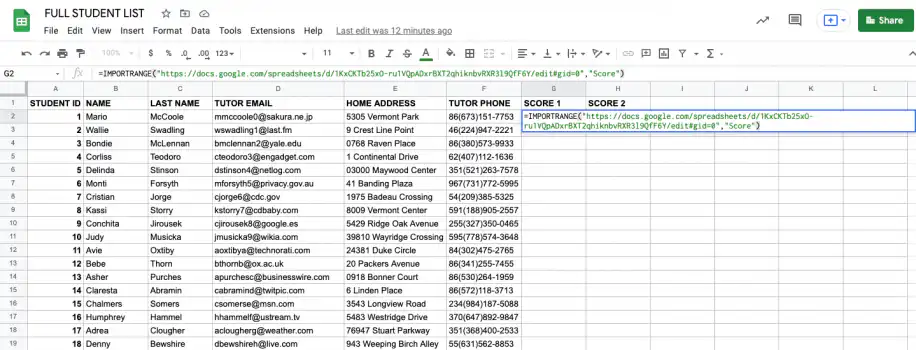
8. Now, try typing in ‘Score’ as your range_string. Remember to add quotation marks on either side as shown below.
9. Now press the return key. You may get a message asking you to connect these sheets. Simply click on “Allow access” to connect them.
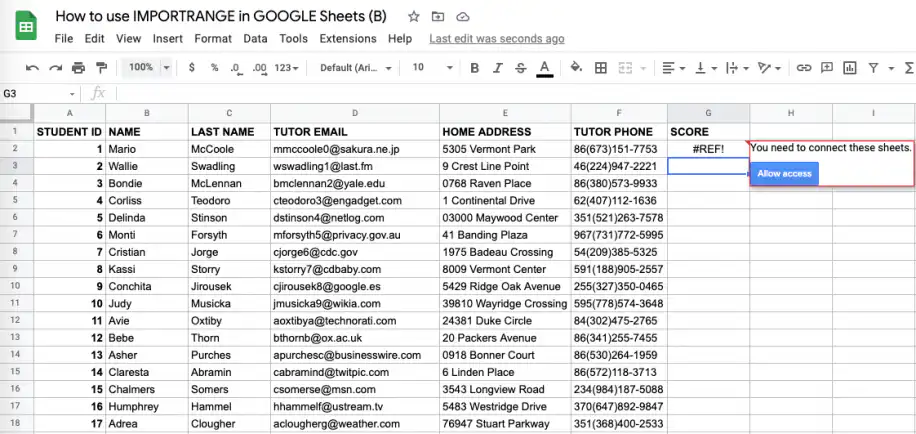
NOTE: Don’t forget that if multiple users are working on Google Sheets, you will need to allow access in order for the IMPORTRANGE to function properly.
10. Once you allow access to the other file, it should start loading. Depending on the amount of data you imported, it may take more than a few seconds.
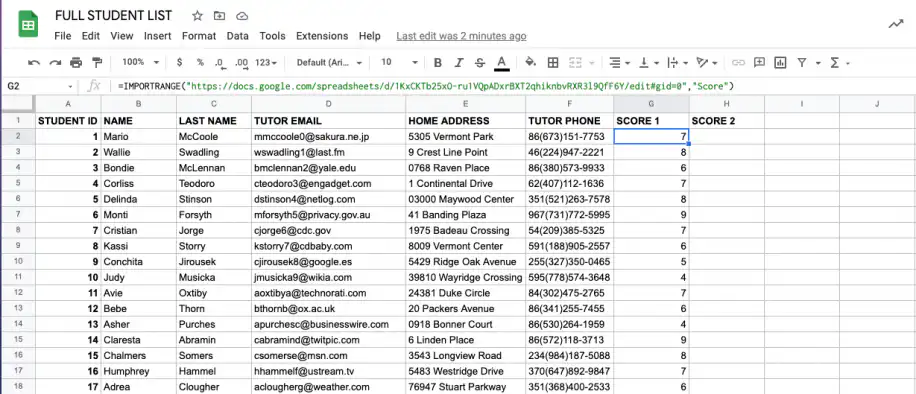
We would like to remind users that the IMPORTRANGE function does not import the data with formatting; it will only import the values.
How to import data from another sheet
IMPORTRANGE can’t import data from another sheet within the same spreadsheet. This constraint can be frustrating, especially if you’re doing a lot of work within a single spreadsheet. Fortunately, there’s a few ways to overcome this limitation.
One of these alternatives is to use the FILTER function. The FILTER function enables you to extract specific data from a range based on specified criteria. This makes it a versatile tool for importing data from other sheets within the same spreadsheet.
Let’s pretend the data we wanted to import in the example above was on the same spreadsheet.
We could transfer it to another sheet with this method. We would select the same range, then set the criteria for the filter function. This criteria would have to match all the cells, which could be achieved by bringing all cells that aren’t empty.
=FILTER('Sales 2020'!C2:C19, 'Sales 2020'!C2:C19 <> "")
This isn’t really what the FILTER function is meant for, but it is effective. To learn more about this powerful tool check out How to use the FILTER function in Google Sheets.
To pull a single cell from another tab instead of a whole range, see how to reference another sheet in Google Sheets.
Troubleshooting IMPORTRANGE errors
While IMPORTRANGE is a powerful function, it frequently returns errors. These issues can range from permission problems to incorrect data ranges.
Some common errors include:
- Spreadsheet cannot be found: This occurs when the source spreadsheet URL is incorrect or the spreadsheet has been deleted.
- You don’t have permissions to access that spreadsheet: This happens when you do not have permissions to view the source spreadsheet.
- Formula parse error: This occurs when there is a syntax error in your formula, such as incorrect range references or improperly used functions.
- #REF! with “You need to connect these sheets”: The first time a spreadsheet pulls data from a new source file, IMPORTRANGE waits for permission. Click the cell with the error and then click Allow access.
- #REF! “Array result was not expanded”: The imported range would overwrite cells that already hold data. Clear the cells below and to the right of the formula.
- Source file owned by another Google account: You need at least view access to the source spreadsheet. Ask its owner to share it with you, then click Allow access.
To effectively troubleshoot and resolve these issues read our detailed guide on IMPORTRANGE errors.
Combining IMPORTRANGE with other functions
There are three functions that pair really well with this function: QUERY, FILTER and VLOOKUP. All of them allow you to alter the results of IMPORTRANGE to suit your needs.
We will go over them, but first we will explore when to use each combination.
| Pros | Cons | |
| IMPORTRANGE + QUERY | ✔️ Aggregates data and performs calculations | ❌ You need to learn basic SQL to use it |
| IMPORTRANGE + FILTER |
✔️ Simple to use ✔️ No need to include other functions |
❌ Limited to basic filtering |
| IMPORTRANGE + VLOOKUP |
✔️ Simple to use ✔️ Useful to look up values in large datasets
|
❌ Probably needs other functions to work efficiently ❌ Can be slower with large datasets due to multiple lookups |
If you are still on the fence about which combination to use, we recommend starting with FILTER and IMPORTRANGE. It has the right balance of efficiency and simplicity.
QUERY and IMPORTRANGE
The QUERY function is another powerful function native to Google Sheets.
You can use these two functions in conjunction by using IMPORTRANGE as the dataset in your QUERY function parameters:
=QUERY(IMPORTRANGE(spreadsheet_url, range_string), query, [headers])
When integrating the QUERY and IMPORTRANGE formula, you need to refer to the columns with their column number rather than their letter name.
=QUERY(IMPORTRANGE("1sqWKxq4mbsJVqy2mZbeV2H7MWF9TZ2V-yU6Ne0NGL0g", "sheet1!A1:C10"), "select * where Col2 contains 'denied'")
Read our blog post on how to combine QUERY with IMPORTRANGE to save time when working with multiple spreadsheets.
FILTER and IMPORTRANGE
The FILTER function is great for quickly extracting a subset of data based on specific criteria. When combined with IMPORTRANGE, it allows you to pull in data from another spreadsheet and filter it simultaneously. This combination is straightforward and highly efficient for basic data filtering needs.
Here’s an example of how to use FILTER with IMPORTRANGE:
=FILTER(IMPORTRANGE("spreadsheet_url", "sheet1!A1:C10"), IMPORTRANGE("spreadsheet_url", "sheet1!A1:A10") = criteria)
This formula imports data from the specified range and filters it based on the criteria provided. It’s a powerful yet simple way to manage data across multiple sheets.
For a detailed guide, read how to use FILTER with IMPORTRANGE effectively.
VLOOKUP and IMPORTRANGE
VLOOKUP is a versatile function used to search for specific values in a range and return corresponding data. When combined with IMPORTRANGE, it allows you to perform lookups across different spreadsheets.
Below is an example of how to use VLOOKUP with IMPORTRANGE.
=VLOOKUP(search_key, IMPORTRANGE("spreadsheet_url", "sheet1!A1:C10"), index, false)
This formula searches for the search_key in the imported range and returns the value in the specified column. While simple to use, VLOOKUP with IMPORTRANGE might need additional functions to optimize efficiency and performance.
To dive deeper, check out our post on using VLOOKUP with IMPORTRANGE.
Why use IMPORTRANGE Google Sheets?
Although IMPORTRANGE is great at transferring data into spreadsheets quickly, it’s also important to note its disadvantages.
Advantages of IMPORTRANGE
- No need to add or download anything.
- Import from any spreadsheet in which you have access to the URL.
- Choose the exact data range that you want to import.
- Place the formula in any cell in your sheet.
- Get real-time updates when you open your spreadsheet.
Drawbacks of IMPORTRANGE
- Hard to organize or visualize connections. If you have to use this function a lot, it becomes messy and error-prone.
- Easy to forget where the formulas are in your spreadsheet and from where you are importing the data.
- Long delays for data to load if you use it across multiple sheets. For example, if importing data from spreadsheet A to B and then again from B to C. In that case, you need to wait for IMPORTRANGE to execute through the whole sequence.
- Risk of incorrect data or errors with multiple uses of formulas. There is no way of verifying that all of the data has been transferred through the chain (without checking every sheet). This is dangerous if you are using this data to make decisions or putting it in reports.
- Cannot import the format of the source cells, including font weight, size, color, or background.
- Impossible to know how frequently data is transferred.
Is there an IMPORTRANGE function in Excel?
No. IMPORTRANGE only works in Google Sheets, and Excel has no function that reads a Google Sheets URL. To bring data from another file into Excel, use Power Query: go to Data > Get Data > From File, pick the source workbook, load the table you need, and click Refresh when the source changes. If your data lives in both Excel and Google Sheets, Sheetgo, an AI-powered data automation platform, can connect the two file types and update them on a schedule, with no formulas.
IMPORTRANGE vs. Sheetgo
IMPORTRANGE is a useful function for transferring data between spreadsheets, but it comes with limitations—especially when working with large datasets.
Sheetgo takes the principle of IMPORTRANGE and expands on its functionality, so you can make the most of your spreadsheet data.
With Sheetgo, an AI-powered data automation platform, you can easily connect your different spreadsheets to transfer data automatically – no formulas or code needed! What’s more, Sheetgo also connects to other file formats like XLS, XLSX, and CSV. As a result, you can transfer data across any spreadsheet files.
Here are just a few of the benefits of using Sheetgo as an IMPORTRANGE alternative:
- Save time: With Sheetgo, there’s no need to manually input a formula. Simply connect your spreadsheets using the add-on, and Sheetgo does the rest for you.
- Avoid human error: With complete automation, there is no risk of introducing incorrect formulas. This means reliable data transfers every single time.
- Keep original formatting: Unlike IMPORTRANGE, Sheetgo can effectively transfer font weight, size, color, or background.
- Avoid data transfer errors: Avoid multiple formulas in a Google Sheet that can corrupt your data. Sheetgo will ensure the information is there when you need it.
- Customizable connections: Connect as many spreadsheets (of all types) as you wish within a single workflow.
- Visualize your connections: Sheetgo provides an easy workflow view so you can visualize the connections and easily identify where data is being transferred to.
- Schedule automatic updates: Sheetgo allows you to schedule automatic updates as frequently as every 15 minutes. Your spreadsheets will update with the latest imported data – no need to open spreadsheets to trigger updates.
- Import only the data you need: with IMPORTRANGE, you must import entire column ranges, even if you only need a few rows. Sheetgo’s Import Range feature allows you to select specific data ranges upfront—making transfers faster and more efficient.

You can experience all of these benefits and more by using Sheetgo with your Google Sheets files.
Alternatively, install the add-on inside your Google Sheets file by heading to Extensions > Add-ons > Get add-ons and searching for Sheetgo. Then select the Sheetgo add-on and click Install.

You’ll then need to sign up to Sheetgo before you begin. But worry not, you can do it in a few seconds and for free!
Once signed in, open the Sheetgo add-on inside your Google Sheets by heading to Extensions > Sheetgo > Start. Now you can begin importing your own data automatically!
How to use Google Sheets IMPORTRANGE
The IMPORTRANGE Google Sheets function is a quick solution to import small volumes of data. With just one formula, you can transfer a specified amount of data into another sheet in no time.
However, it might not be the right choice if connecting spreadsheets is an everyday thing. What’s more, IMPORTRANGE does have a few limitations which can impact the accuracy of your data if used incorrectly.
When you depend on these connections for analysis, reports, and decision making, we strongly recommend using Sheetgo, an AI-powered data automation platform. It integrates with Google Sheets in order to make the most of your data management. It enables you to easily transfer various data from various spreadsheets – all automatically!
Take a look at our IMPORTRANGE vs Sheetgo blog post if you want to know more about the difference between the two.
If you’ve outgrown IMPORTRANGE entirely — large datasets, security concerns, or multi-file merges — see the scalable IMPORTRANGE alternative for two real use cases that replace the formula without writing any cell-level references.
 English
 Español
 Português do Brasil
 Français